Each launched MerchantAI agent has its own Profiles section. Profiles are configuration contexts inside that agent's workspace.
Open Profiles
- Open the main Agents page and select Launch for an agent.
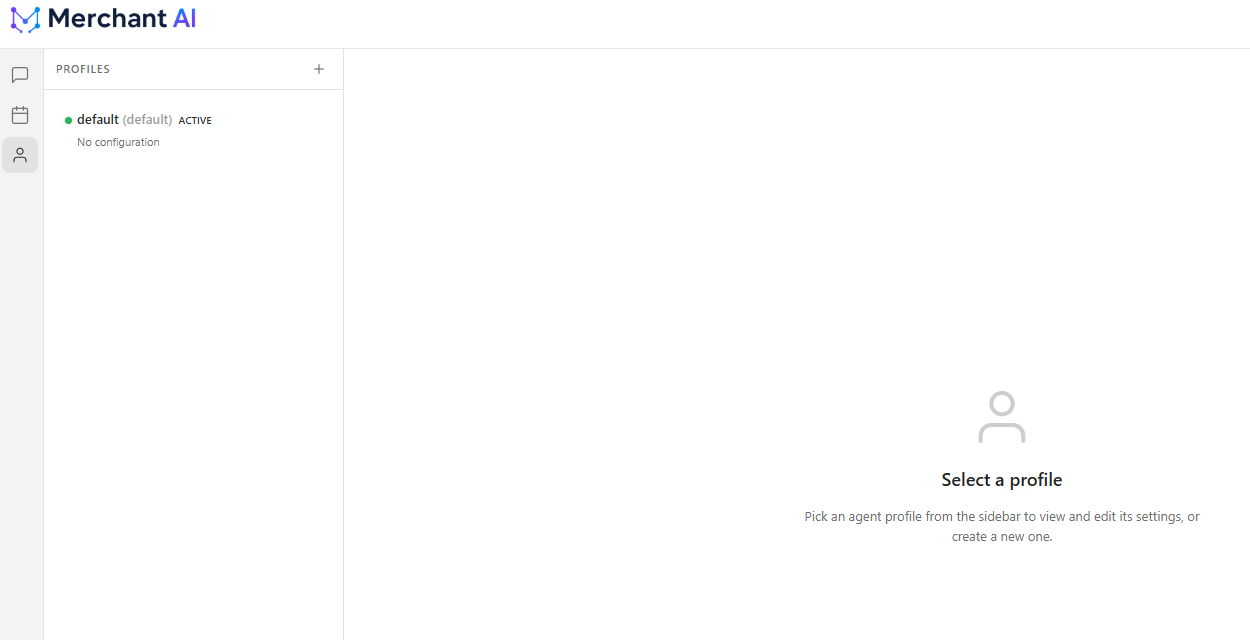
- Select the person-shaped Profiles icon in the workspace sidebar.
- Select a profile from the list to inspect its settings, or use the + control to create one.
A default profile is shown in the screenshot. The interface also indicates whether the profile is active and whether it has configuration data.
Important distinction: profile vs. agent
- An agent instance is created and managed from the main MerchantAI Agents page, with its own employee access, BigCommerce permissions, and integrations.
- A profile is managed inside a single launched agent's workspace.
Creating a new profile does not create another separately managed MerchantAI agent instance.
Which one should I use?
If you need separate teams, employees, BigCommerce credentials, or external integration settings, create and configure separate agent instances from the main app.
Use Profiles when you need the additional configuration contexts provided within a particular agent's workspace. The exact settings shown depend on the selected profile and agent configuration.
Related articles
Was this article helpful?
That’s Great!
Thank you for your feedback
Sorry! We couldn't be helpful
Thank you for your feedback
Feedback sent
We appreciate your effort and will try to fix the article