The Agents page lets you create and manage separate MerchantAI agent instances for your store.
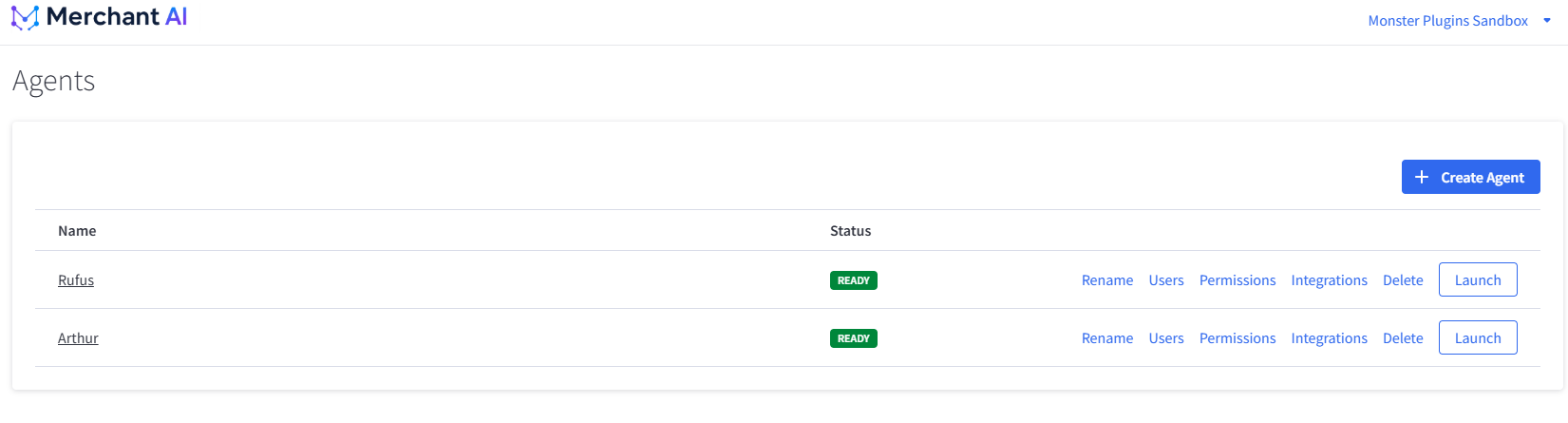
Create an agent
- Open the Agents page.
- Select Create Agent.
- Complete the setup shown in MerchantAI.
- Look for the new agent in the list. The status is shown alongside its name (for example, READY).
- Select Launch to enter that agent's workspace.
You might create separate agents for product catalog work, marketing operations, and fulfillment. These are examples of how to organize work, not predefined agent types.
Manage an existing agent
Each row in the Agents page has management actions:
- Rename: Change its display name.
- Users: Choose which employees can access the agent.
- Permissions: Choose the BigCommerce credentials the agent uses.
- Integrations: Configure connected services and messaging options for the agent.
- Delete: Remove the agent; confirm what will be removed before proceeding.
- Launch: Open its workspace to use Chat, Scheduled Jobs, Profiles, and Settings.
Tip: Configure Users and Permissions separately. Users controls who may open an agent; Permissions controls what the agent can access through BigCommerce.
Agents vs. profiles
A separate agent instance appears on the main Agents page. An agent profile is a configuration context inside a launched agent's workspace. Creating a profile is not the same as creating another agent instance.
Related articles
Was this article helpful?
That’s Great!
Thank you for your feedback
Sorry! We couldn't be helpful
Thank you for your feedback
Feedback sent
We appreciate your effort and will try to fix the article