By default, an agent can use MerchantAI's existing BigCommerce app connection. You can instead supply a dedicated BigCommerce API token with narrower scopes.
Use custom permissions
- Open the main Agents page.
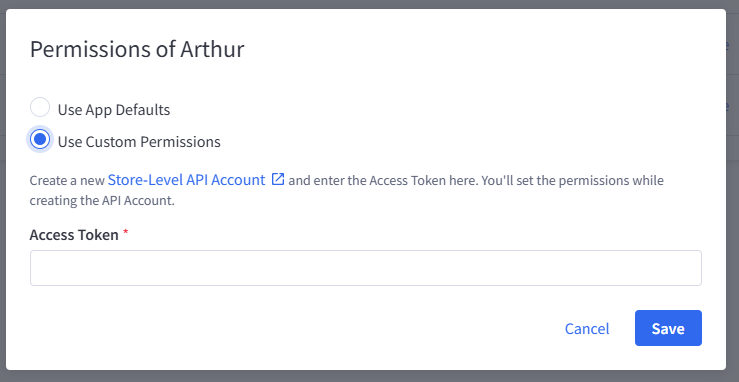
- Select Permissions beside the relevant agent.
- Choose Use Custom Permissions rather than Use App Defaults.
- Follow the Store-Level API Account link to create a new account in BigCommerce.
- During account creation in BigCommerce, select only the API scopes the agent needs.
- Copy the resulting Access Token into MerchantAI's Access Token field.
- Select Save.
BigCommerce applies the scopes associated with that token to API requests using it. For example, an agent with no orders scope cannot use that token to retrieve order information through the BigCommerce API.
When to use this
- Give a catalog-oriented agent access to products without granting order access.
- Restrict an agent intended for analysis to read-oriented permissions where BigCommerce provides them.
- Separate operational responsibilities across agents.
Important limitations: BigCommerce determines which scope combinations are available. These scopes are not a custom per-field permission editor, and restricting BigCommerce credentials does not automatically restrict access through separately configured third-party integrations.
Security recommendations
- Use a dedicated Store-Level API Account for each separately restricted agent.
- Select the least privileges required for the intended tasks.
- Treat API access tokens as secrets; do not paste them into ordinary agent chat messages.
- If a token may have been exposed, revoke or regenerate it in BigCommerce and update the saved configuration.
The app handles the configured BigCommerce key outside of the agent's direct-access context.
Related articles
Was this article helpful?
That’s Great!
Thank you for your feedback
Sorry! We couldn't be helpful
Thank you for your feedback
Feedback sent
We appreciate your effort and will try to fix the article