Use Chat to ask questions, investigate problems, and delegate operational work to your AI agent in ordinary language.
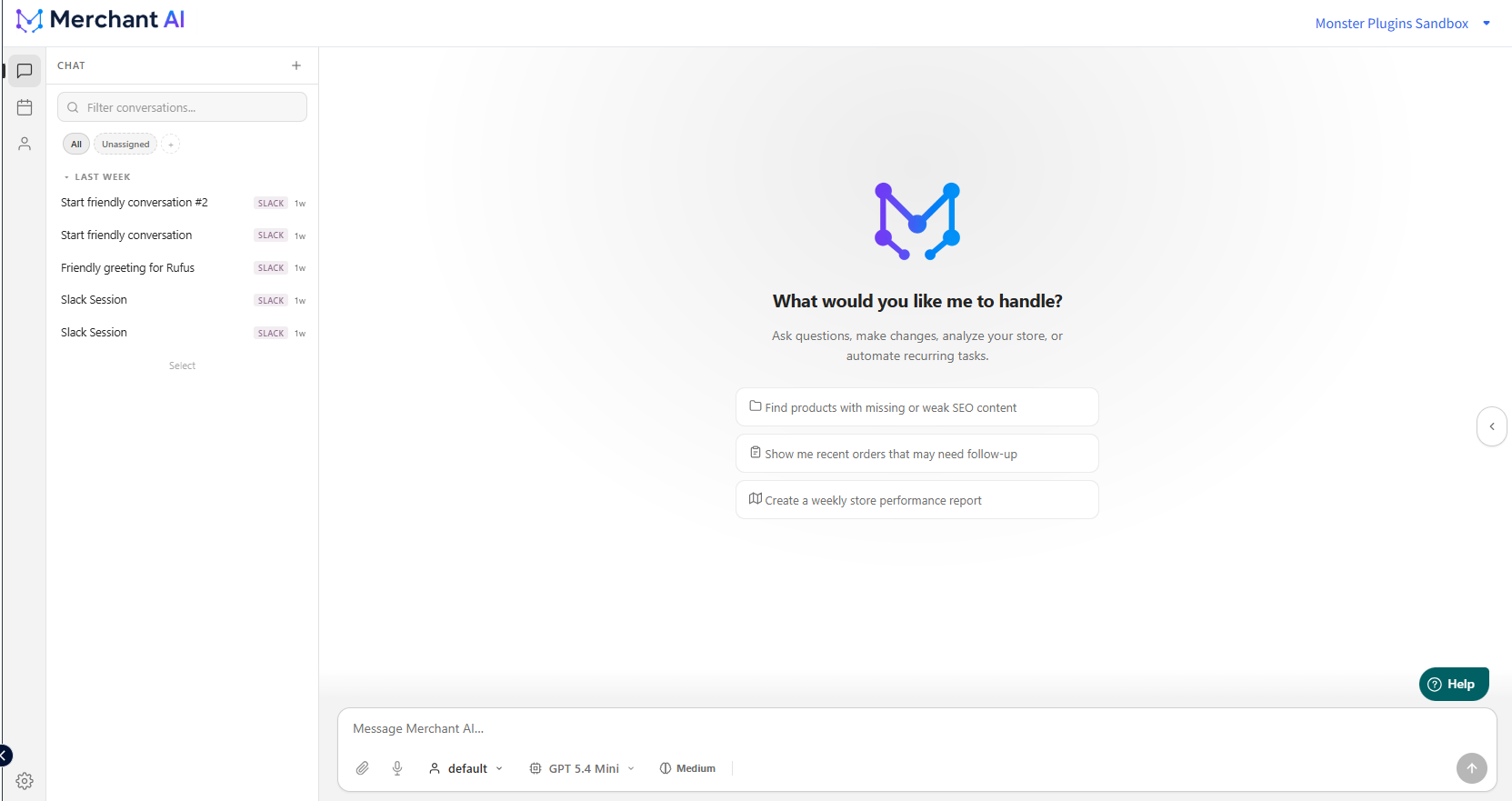
Start a conversation
- Launch the relevant agent from the main Agents page.
- Select the speech-bubble Chat icon.
- Select an existing conversation from the left panel, or use + to create a new one.
- Choose the relevant agent profile and AI model if needed.
- Type your request and send it.
Conversation history appears in the left panel, with a search/filter field. Conversations created through connected channels may display a channel label such as SLACK.
Example requests
- “Find products with missing or weak SEO descriptions, and prioritize the most important fixes.”
- “Show recent orders that may need follow-up and explain why.”
- “Compare sales performance across two periods and summarize the biggest changes.”
- “Review inventory and flag products that may run out soon.”
- “Create a weekly store performance report.”
For complex requests, include the scope, goal, and desired output. For example: “Review all products, identify the ten most important catalog issues, and return a ranked summary with recommended next actions.”
What to expect
An agent may take several steps to gather information, perform supported operations, or produce a written analysis. Output often appears as normal text, lists, and tables within the conversation rather than as a graphical dashboard.
If the agent generates output files, use the workspace panel (opened by the arrow at the right edge of the chat interface) to find them.
Caution: Requests that modify store data should be scoped carefully. The agent's available actions are subject to its tools and configured access permissions.
Related articles
Was this article helpful?
That’s Great!
Thank you for your feedback
Sorry! We couldn't be helpful
Thank you for your feedback
Feedback sent
We appreciate your effort and will try to fix the article